Images and Result Follow-ups
The Web conversation accepts images through +, clipboard paste, or file drag-and-drop. Add a question, or send an image alone for inspection. Up to four images can accompany a message. PNG, JPEG, WebP and non-animated GIF are accepted; each image is limited to 20 MB and 32 million decoded pixels. Images are normalized to PNG with metadata removed before they are sent to the selected OpenAI model. The normalized image must also fit the size limit. Other uploaded files remain local; uploading a table does not send the entire table to the model.
The composer shows the image count from the first attachment. At four images it explains how to remove and replace one; another upload or crop gives a visible limit message instead of silently doing nothing.
Examples include identifying an unfamiliar plot, discussing an apparent outlier or missing region, comparing two plotting styles, explaining a correlation heatmap, or using a screenshot as a visual specification for a future figure. The model should distinguish visible evidence from missing source data. A screenshot cannot establish exact counts, statistical significance or clinical validity. Reproducing a scientific plot requires the actual data and an authorized analysis. Instructions embedded inside a picture are treated as untrusted content.
Attached images are displayed with the corresponding user message, survive reloads, and remain owned by that conversation. New attachments are distinguished from earlier visual context. Deleting the conversation uses the existing Trash flow for its uploads and outputs. Image messages currently require OpenAI; the application reports an error if a different provider is selected.
In the interactive CLI, use /image "/path/to/figure.png" What does this show?.
The explicit attachment uses the same normalization, ownership and model input
contract as Web. Ordinary references to a local figure do not send it automatically.
Plan and Results Controls
- Run next step executes the current plan's recommended runnable step. It is an execution action, so use it after reviewing that step. Completion updates results and task status; it does not authorize every remaining step.
- Ask sends the selected result and bounded local preview context to the agent for explanation. It asks what the result means and what its limits are.
- Use result for next step asks the agent to use that result to propose a focused follow-up. It does not itself authorize another scientific run. Review the proposal before requesting execution.
The selected result is preserved in these follow-up prompts. Unsupported or incomplete results should be identified honestly, without inventing missing figures, statistics or an automatically completed pipeline.
Ongoing tasks and refresh
During a turn, the conversation shows temporary operation updates, measured worker progress when available, and periodic liveness when no count is available. These updates are replaced by the final answer; they are not private reasoning. Native context compaction is announced while it runs and when it completes. Completed local results and the visible conversation are retained.
Guide adds an instruction to the active turn; Stop requests cancellation and keeps completed outputs. Refreshing the same browser conversation reconnects to its recorded running job without submitting the question again. If the local service itself restarted, the UI explains that the old running job is unavailable; ask to continue unfinished work from retained results. Browser storage must be available for refresh recovery.
Figure regions and source data
In Results, use Select region to ask in a figure toolbar, then drag a rectangle. A compact question field appears next to the selected region. Type a question and press Enter to send that crop as a normal image-and-text message. Leave it empty and press + to collect the crop in the main composer. Collect up to four images, remove any unwanted attachments, and send them with one shared instruction. Escape or Cancel dismisses a selection. Zoom and fit controls remain available; begin a new selection after changing the view.
The selection includes the centres of mapped marks, not every shape touched by the rectangle. Labels, legends and whitespace do not identify data. New assay-table PCA plots map to original matrix samples; feature heatmaps map to original-scale cells; differential-expression plots map to matrix features. New cfDNA sample-by-bin heatmaps map to their exported normalized signal table. Old figures and other plots support image questions but do not acquire an exact data mapping retroactively. The popover explicitly distinguishes exact mapped marks from image-only regions.
The image and its provenance remain in the conversation's output location. The source figure and table are checked for changes before any selected-data operation. For a numerical follow-up the agent can inspect the selection without writing files, or, when requested, produce a separate selected-data table, descriptive statistics, provenance and report. Numerical tool responses keep identifiers local; the selected image itself is sent to the configured OpenAI model, including any visible labels. This tool does not fit a differential model or infer groups: a more advanced method still requires compatible inputs, an appropriate analysis design and a supported scientific capability. Multiple selections are not silently merged.
New assay feature heatmaps also record their display transform: per-feature z-scores across the displayed samples, clipped to [-3, 3], with brown negative and teal positive. These colours are distinct from the original matrix values available through selection inspection. If a figure does not record its transform, the agent should not infer its scale from source-value summaries. Opaque source identifiers distinguish crops from different figures and tables even when their filenames match.
Live example: two-figure follow-up
These full-workspace screenshots were captured during the real GSE174302/OpenAI browser run, not from UI fixtures. Follow the complete research workflow to produce the QC report first. Use the first QC entry in Results history; opening it does not rerun QC.
Select and ask immediately
Scroll to the PCA, click Select region to ask, and drag across the right-hand points. Release the mouse, wait for the mapping count, then type beside the box. In this run, 6 mapped marks · exact data referred to six samples. The question was: “Inspect these PCA outliers in the source data. Are they technical or biological? Do not exclude samples.” Pressing Enter submitted it immediately.
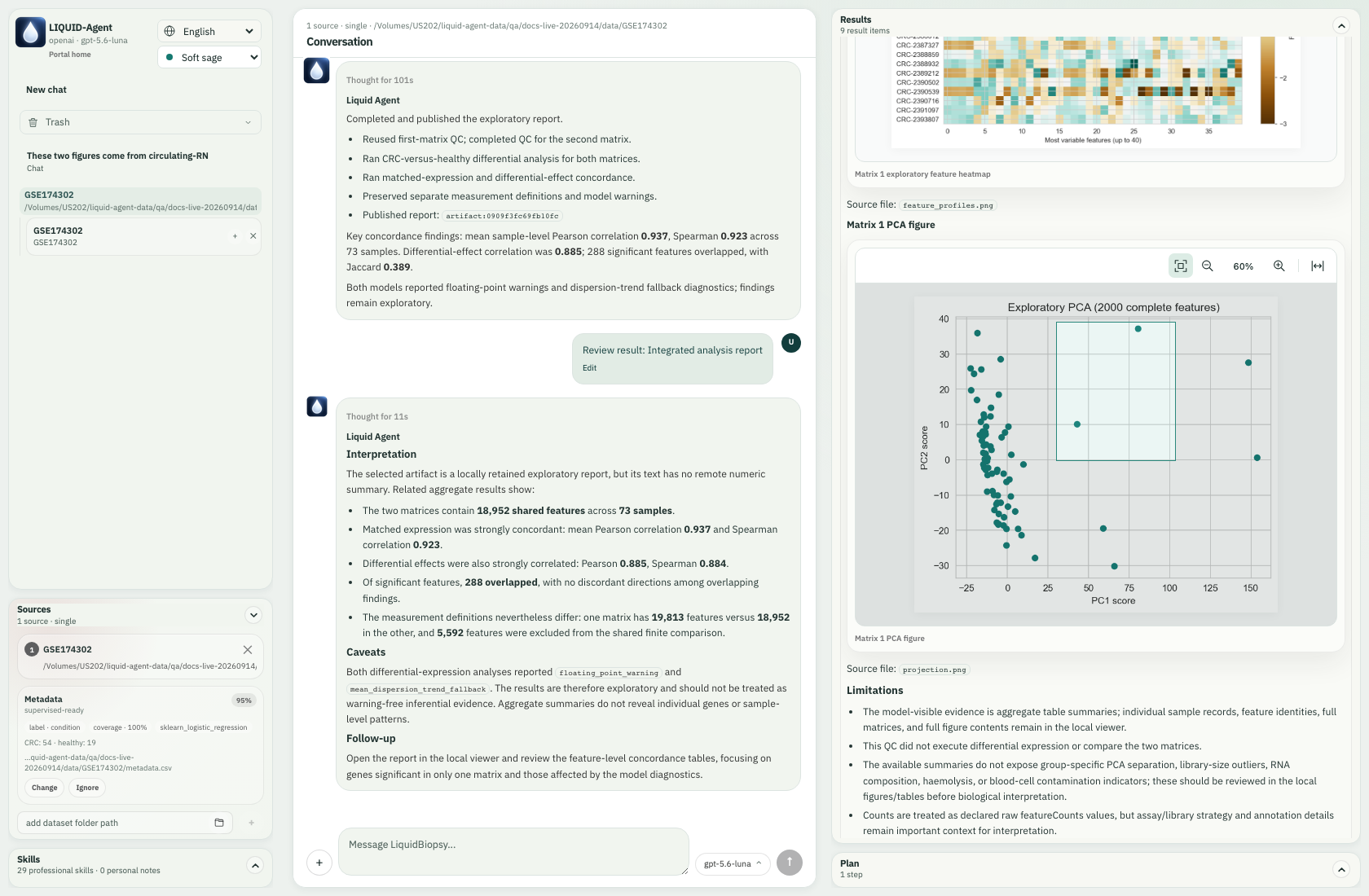
During the actual mouse drag, the selection rectangle grows across the PCA.
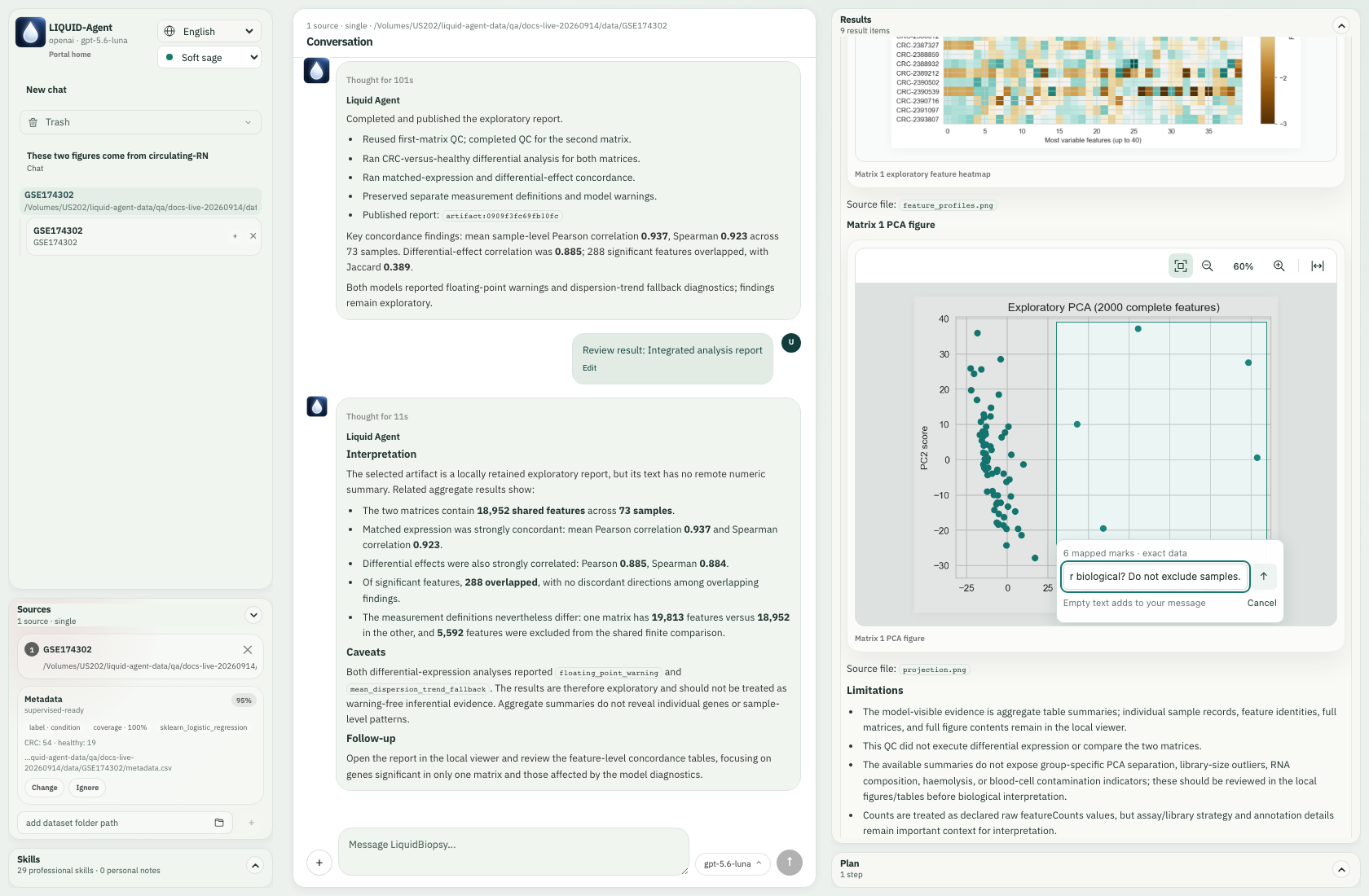
After release, the compact question field and exact mapping count appear.
The actual answer inspected 118,878 finite source measurements for six samples across 19,813 features. It could not establish technical versus biological causation. The crop is now part of the user message, rather than a detached temporary note.
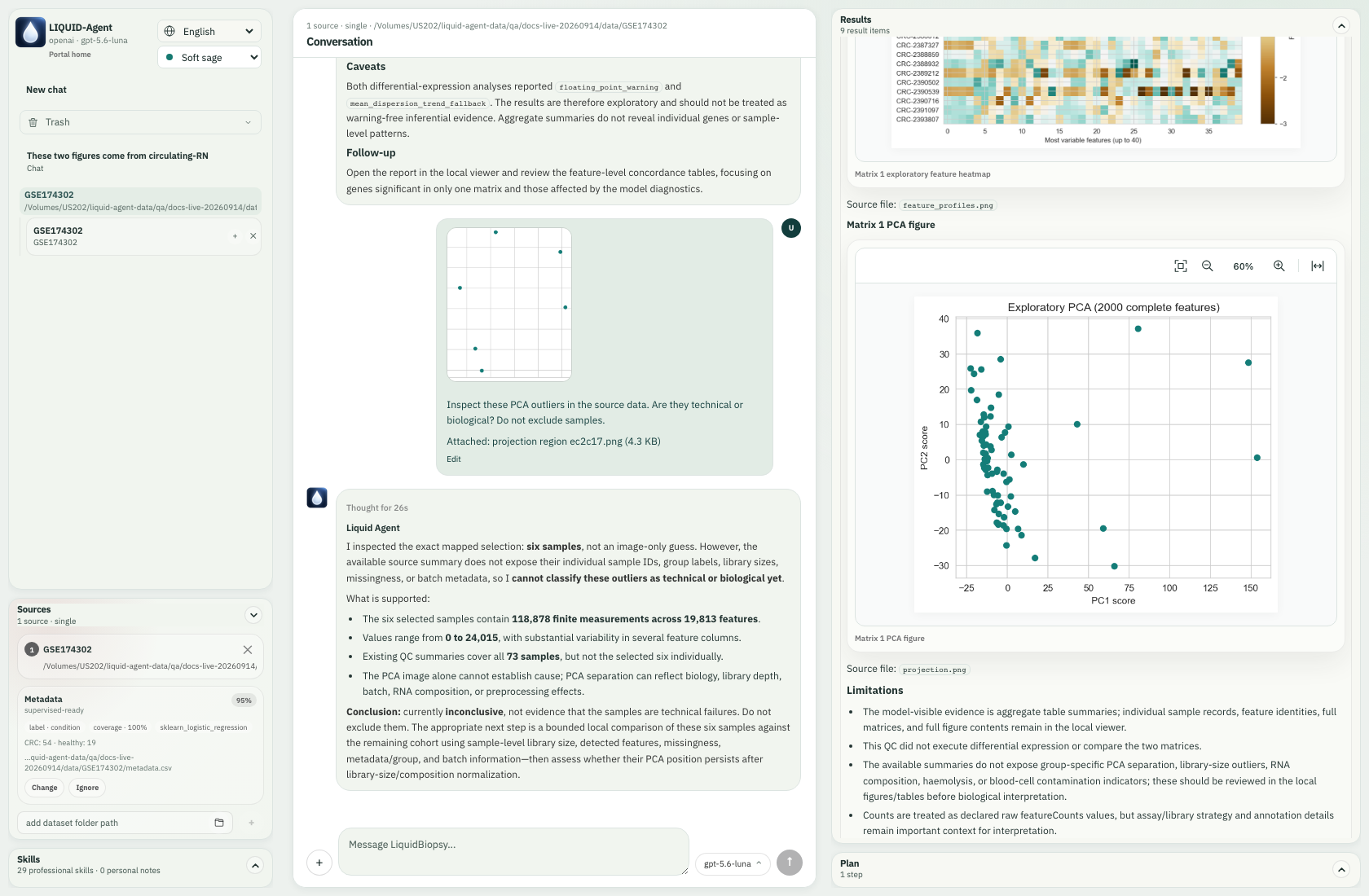
The submitted image, question and real source-grounded answer remain together.
Stage one crop, then choose another figure
Select the PCA region again, leave its question field empty, and click the adjacent +. This adds an attachment without calling the model. The main composer shows 1/4 and explains how to add more.
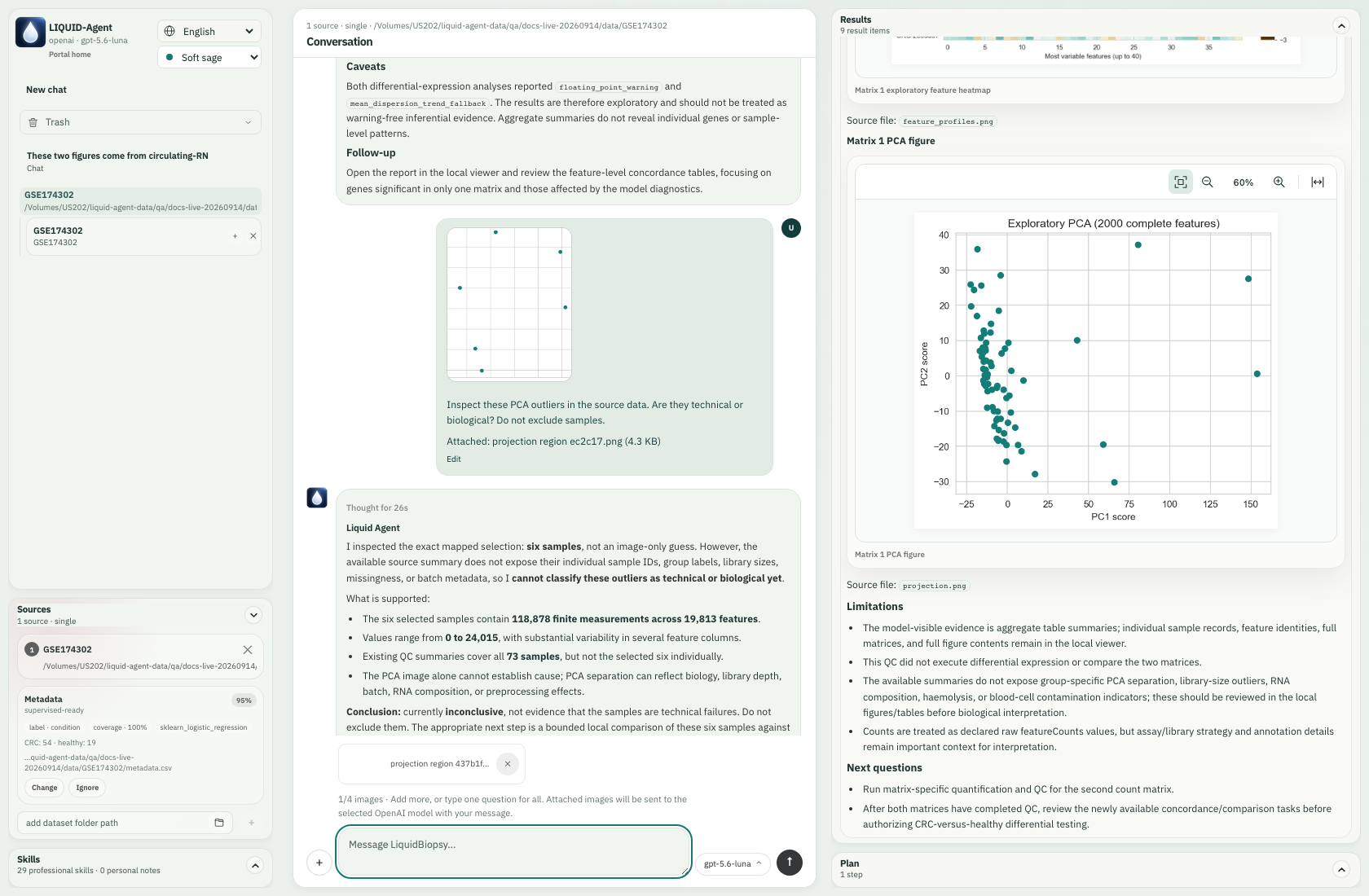
The first PCA crop is staged for a later shared question.
Move to the feature heatmap, rather than taking an almost identical crop from the PCA. Use Fit to width; a tall image can then be scrolled vertically inside its viewer. Zoom controls change the view, not the source measurements. Make the next selection after adjusting zoom.
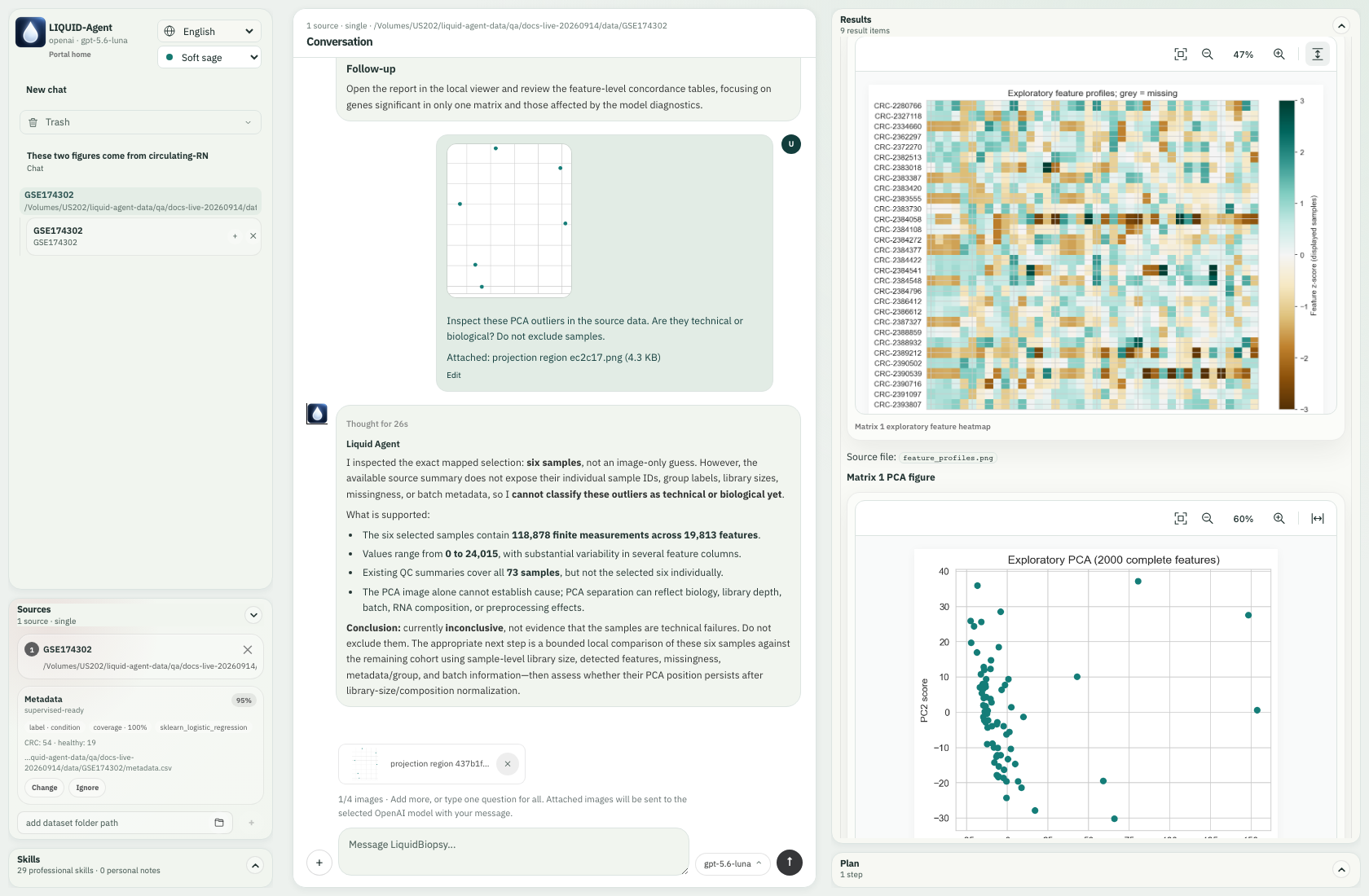
Width fit makes heatmap cells easier to inspect.
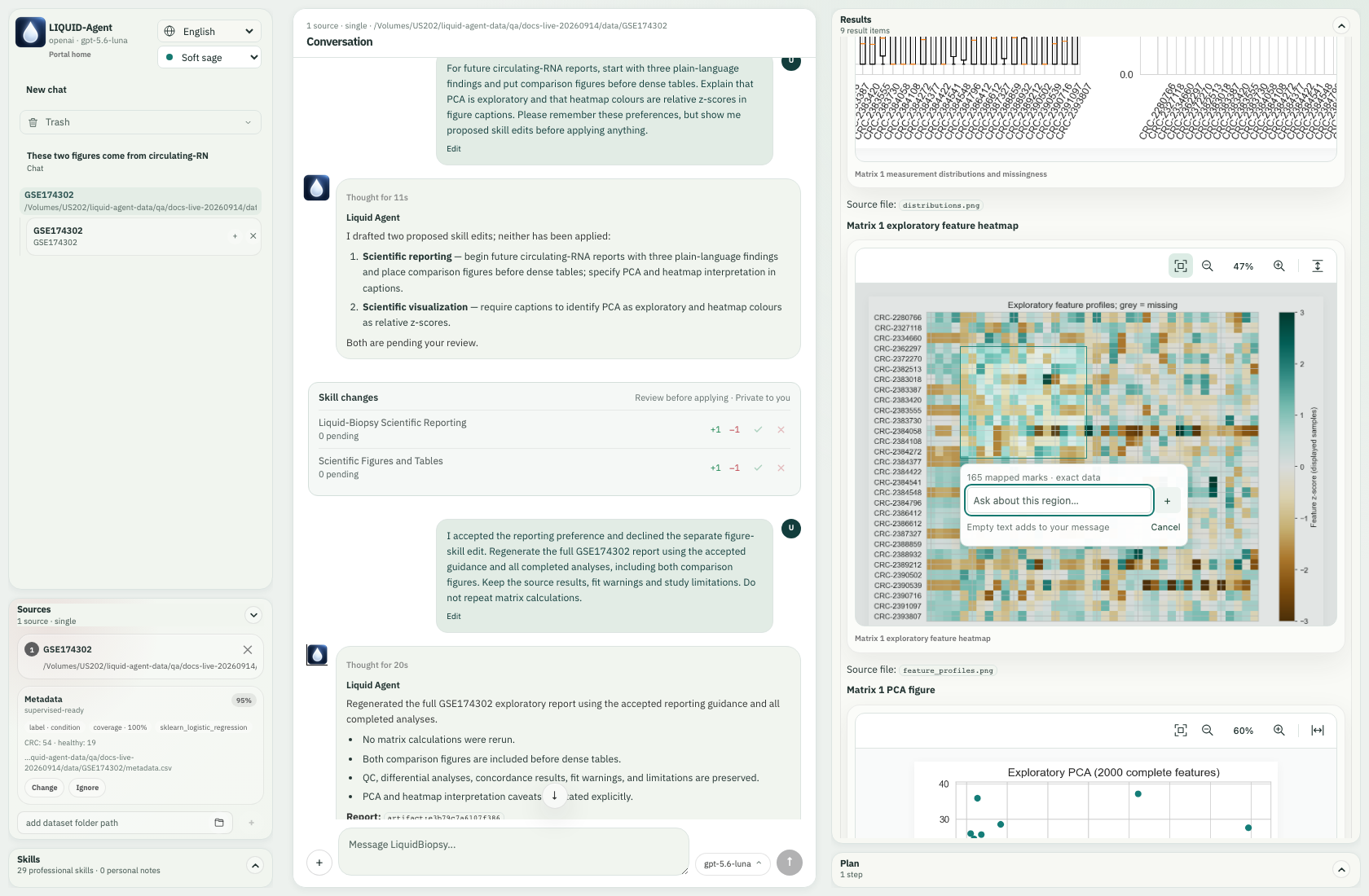
The heatmap block is selected separately; this block maps to 165 cells across 11 rows and 15 columns.
Click the empty field's +, then enter one question in the main composer:
Compare the PCA outlier region with this heatmap block. Inspect both mappings; explain their units and whether they identify the same samples. Summarize the selected data separately and write a short follow-up report. Do not merge selections or rerun differential analysis.
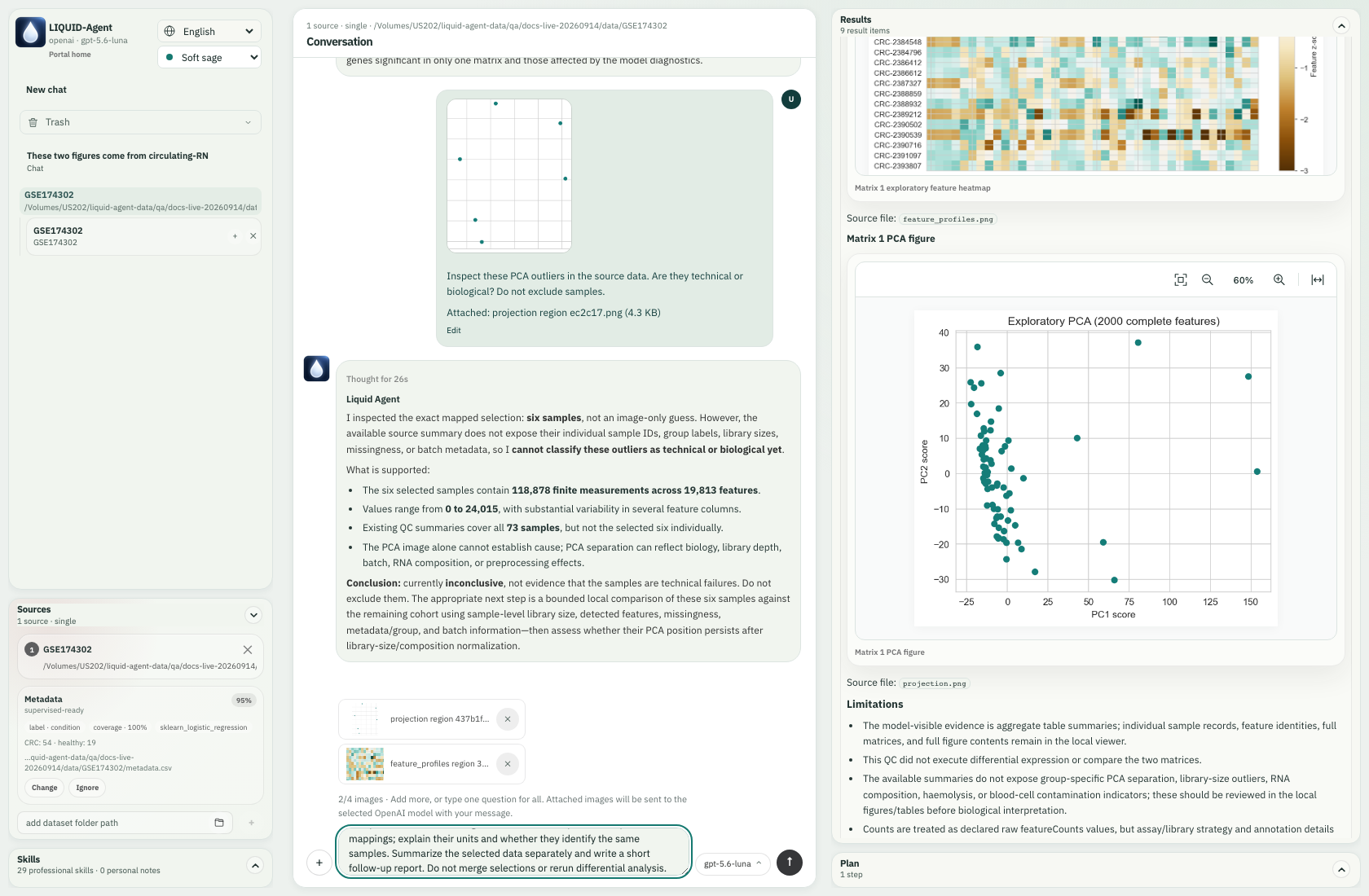
Two different crops and one shared instruction are ready to send.
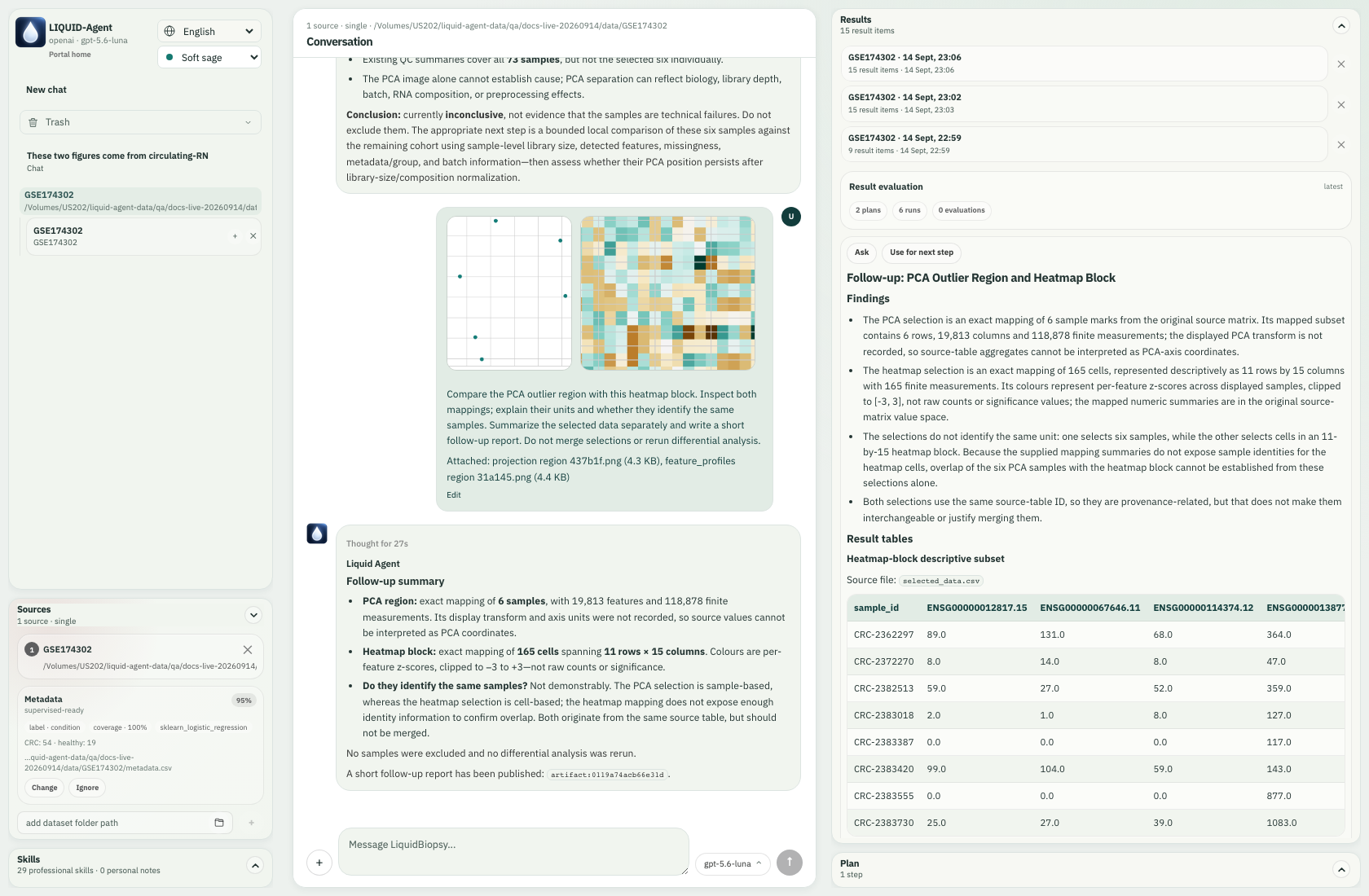
The real response distinguishes the selection units and publishes local selected-data tables.
The live answer did not establish sample overlap from the bounded mapping summaries. It distinguished sample selection from cell selection, preserved them separately, and explained that heatmap colours are clipped relative z-scores while its numerical subset contains source counts. New selected-data/statistics files were produced; the six completed matrix/QC/comparison jobs were not rerun. An exact data link is not a guarantee that every requested analysis or metadata join is implemented.
Upload existing PNGs instead
In New chat → Later, use + to upload the two complete QC PNGs. We asked what PCA and heatmap represent and whether either proves cancer diagnosis. This was a separate real multimodal API call without an attached dataset.
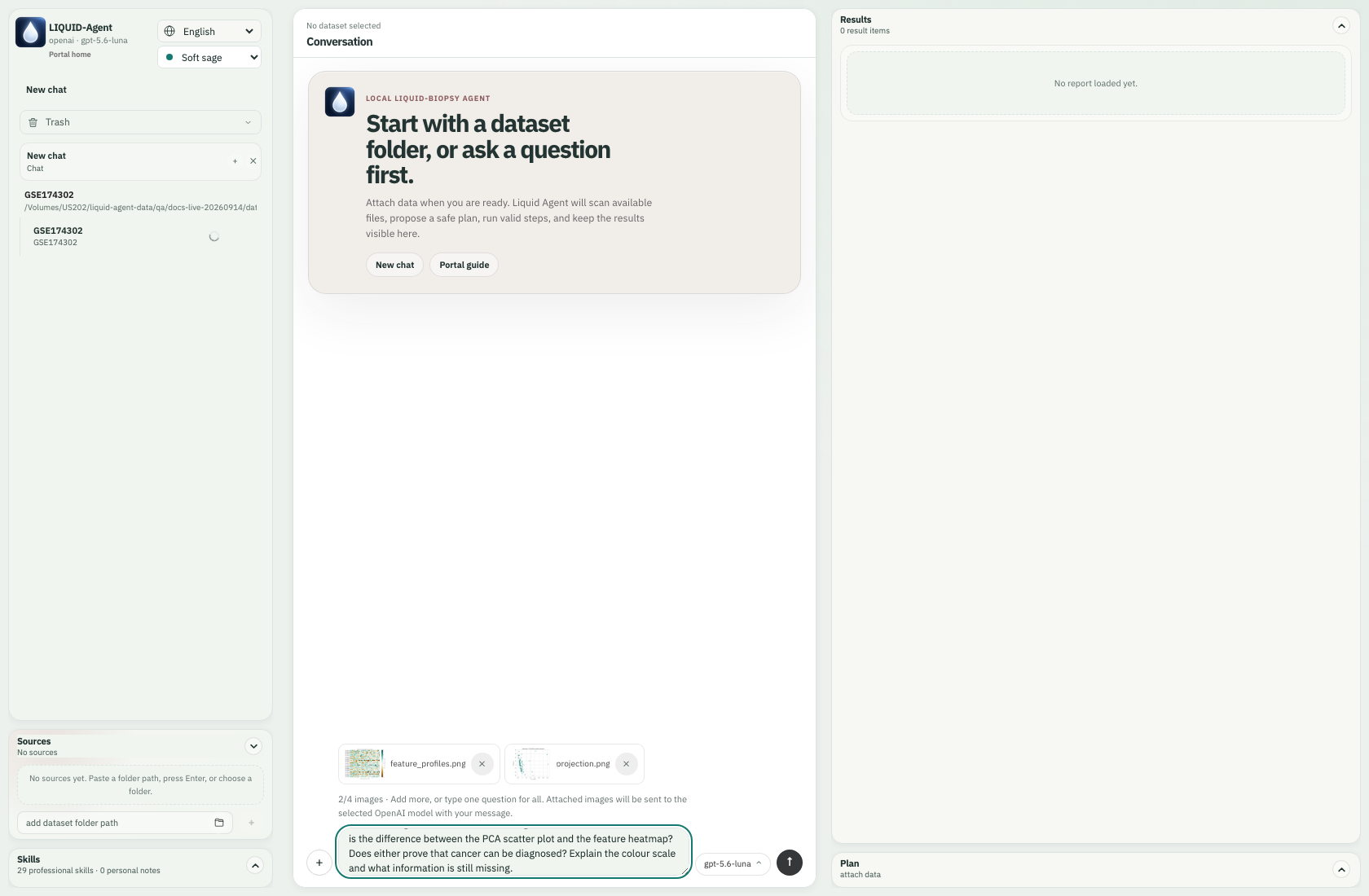
The actual PCA and heatmap files are attached through the upload input, with the 2/4 guidance.
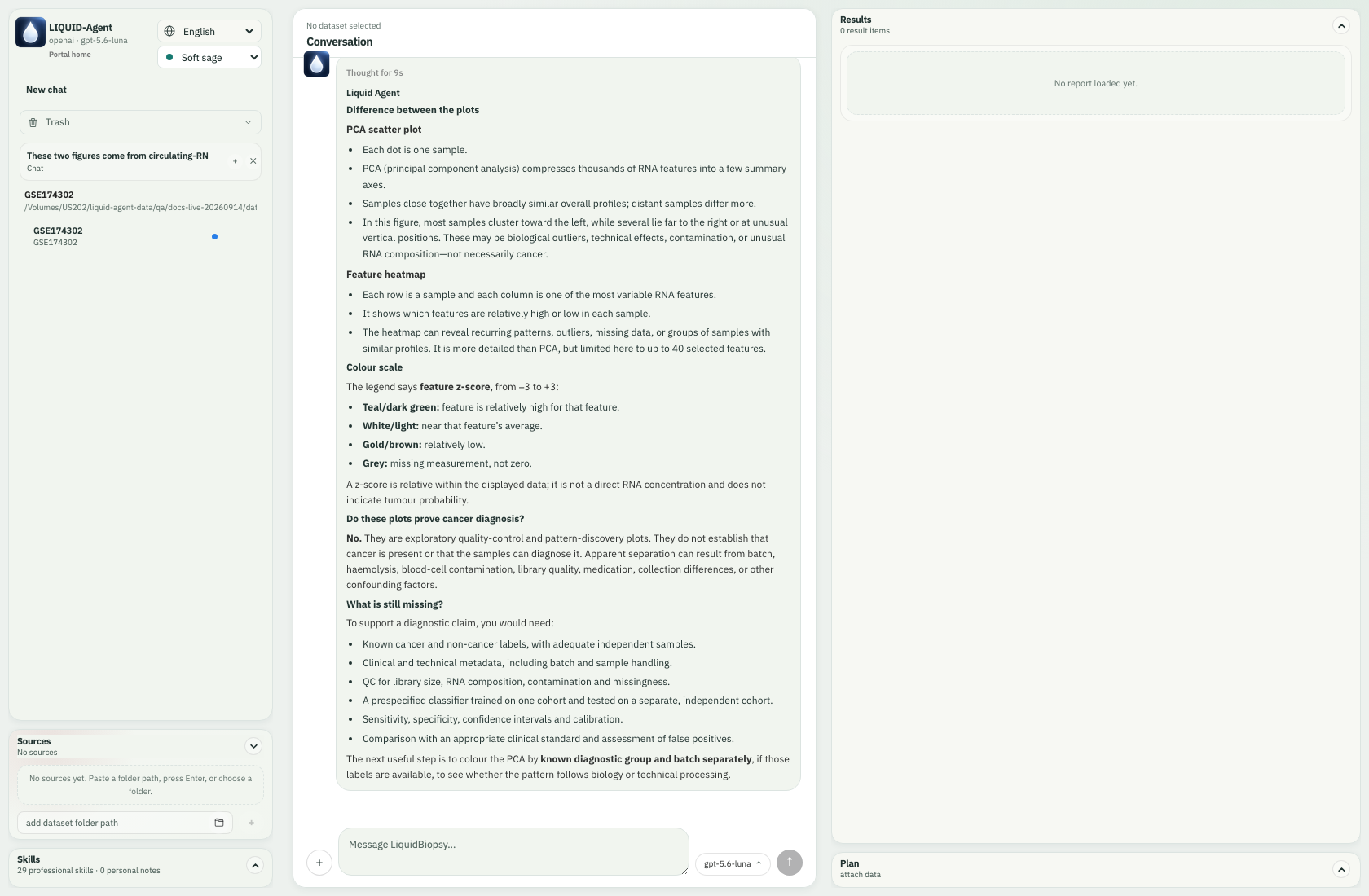
The model explains the uploaded images and the missing diagnostic evidence.
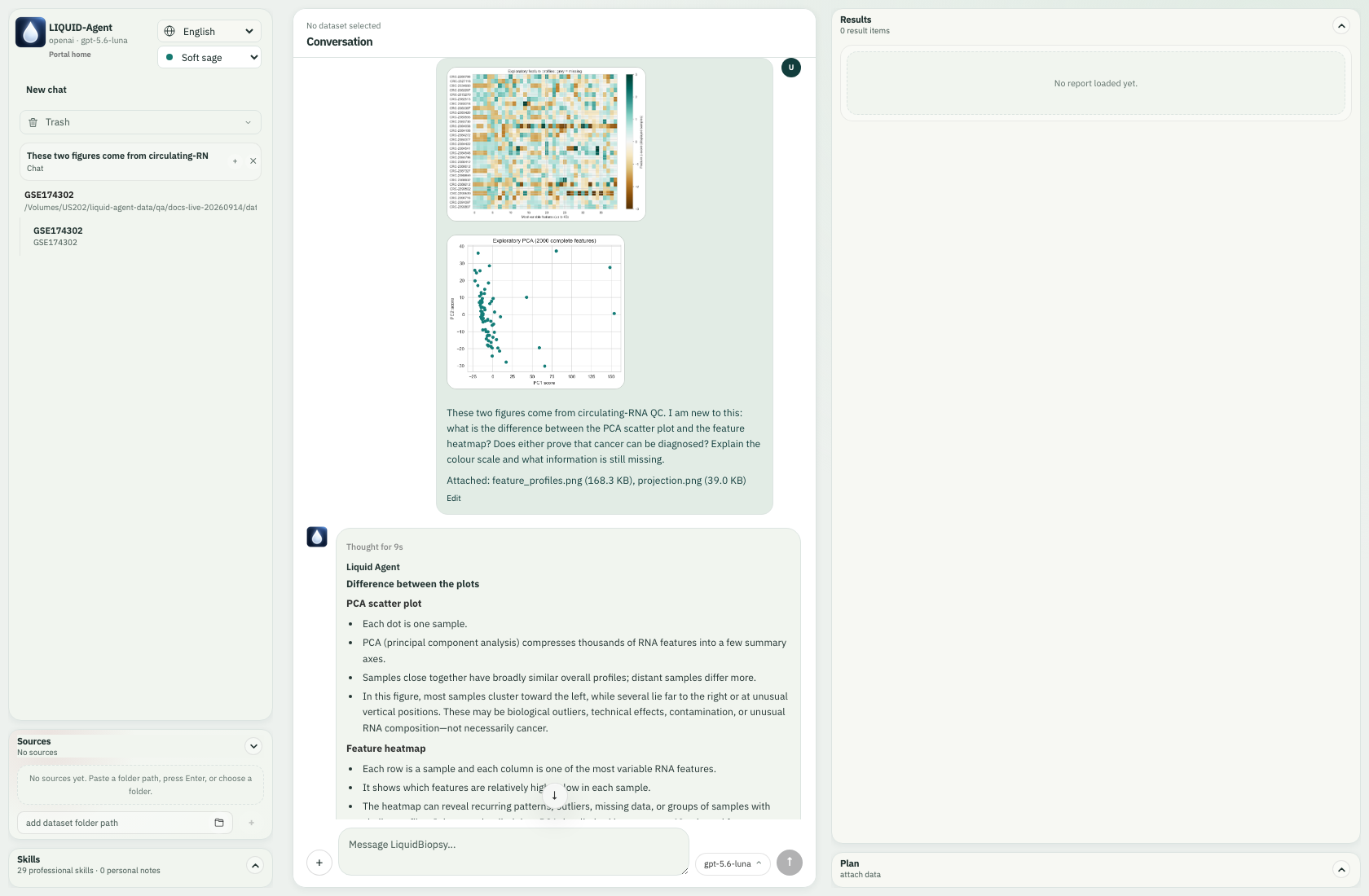
The two uploaded figures stay with their actual question after reload and restoration.
An uploaded PNG carries pixels, not the Results selection's data linkage. For exact measurements, return to the dataset's Results figure and use its mapped selection. For visual explanations, screenshots from outside the app are valid inputs too. Paste and drag-and-drop are alternate input routes; these captures specifically exercised file upload and Results cropping.
Results currently embeds static figures with the application's own zoom, pan and region controls. A generated Plotly HTML file is not automatically an interactive Plotly panel in Results.